YouTube Thumbnail Downloader
Save any YouTube thumbnail in Full HD quality instantly. Get high-resolution images for free with one click online now. Try it!
You spot a thumbnail that stops scrolling. Great composition, bold text, colors that pop and you want to study it. Maybe you're a creator researching what works in your niche. Maybe you're a designer pulling reference images. Maybe you just want to save a frame from a video you love.
Whatever the reason, downloading a YouTube thumbnail shouldn't require a browser extension, a sketchy third-party site, or digging through page source code. It should take about five seconds and it can.
What You'll Learn in This Guide
What Is a YouTube Thumbnail Downloader?
A YouTube thumbnail downloader is a tool that pulls the thumbnail image from any YouTube video and lets you save it directly to your device no login, no software, no fuss.
Every YouTube video has a thumbnail automatically generated by YouTube itself. But when a creator uploads a custom thumbnail (and the good ones almost always do), that image is stored on YouTube's servers and publicly accessible it's just not easy to get to without a dedicated tool.
A good downloader handles that for you. You paste in the video URL, it fetches the image, and you download it in whatever resolution you need.
How to Download a YouTube Thumbnail - Step by Step
It's genuinely this simple. Here's how it works with the YouTube thumbnail downloader at ThumbsUpMe:
Step 1: Find the YouTube video
Go to YouTube and open the video whose thumbnail you want to save. Copy the URL from your browser's address bar. It'll look something like https://www.youtube.com/watch?v=dQw4w9WgXcQ.
Step 2: Paste the URL into the downloader
Head to the thumbnail downloader tool and paste the URL into the input field. Hit the button to fetch the thumbnail.
Step 3: Choose your resolution
You'll usually get a few options more on what those mean in a moment. In most cases, you want the highest resolution available.
Step 4: Download the image
Click the download button. The thumbnail saves to your device as a standard JPG file, ready to use.
That's it. No account needed, no email address, nothing to install.
Which Resolution Should You Choose?
YouTube stores thumbnails at several different sizes. When you use a downloader, you'll often see options like these:
This is what you want in almost every case. Full HD, sharp, ready for any use. Not every video has this resolution available it depends on whether the creator uploaded a high-res custom thumbnail. If it's there, grab it.
Standard definition. Fine for rough reference but you'll notice the quality drop if you zoom in or use it in a presentation.
The one YouTube reliably serves as a fallback. Lower quality but always available, even for older videos.
Smaller still, mostly useful if you're building something that needs a tiny preview image and bandwidth matters.
For research, design inspiration, or any kind of visual work always go for maxresdefault first. If it isn't available, sddefault is your next best bet.
Why Creators Actually Use Thumbnail Downloaders
If you're building a YouTube channel, downloading thumbnails isn't about copying anyone. It's about learning. The best creators study what works the same way a novelist reads widely or a filmmaker watches everything.
Competitor research
You find the top 10 videos in your niche and download their thumbnails. Then you lay them all out side by side and look for patterns are they all using close-up faces? Bright orange backgrounds? A specific font style? That's market research, and it's completely free if you know how to do it.
Before/after analysis
Some creators update their thumbnails after a video underperforms. If you've saved the original, you can compare the old and new versions and think about what changed and whether performance shifted.
Reference for your own designs
You're not copying the thumbnail you're studying the composition. Where did they place the text? How did they balance the subject and the background? These are design questions, and having the actual image in front of you is a thousand times more useful than trying to remember it.
Presentations and case studies
If you run a YouTube growth agency, teach a creator course, or put together content strategy decks, you need real examples. Being able to pull a thumbnail directly rather than screenshotting at low res makes everything look sharper.
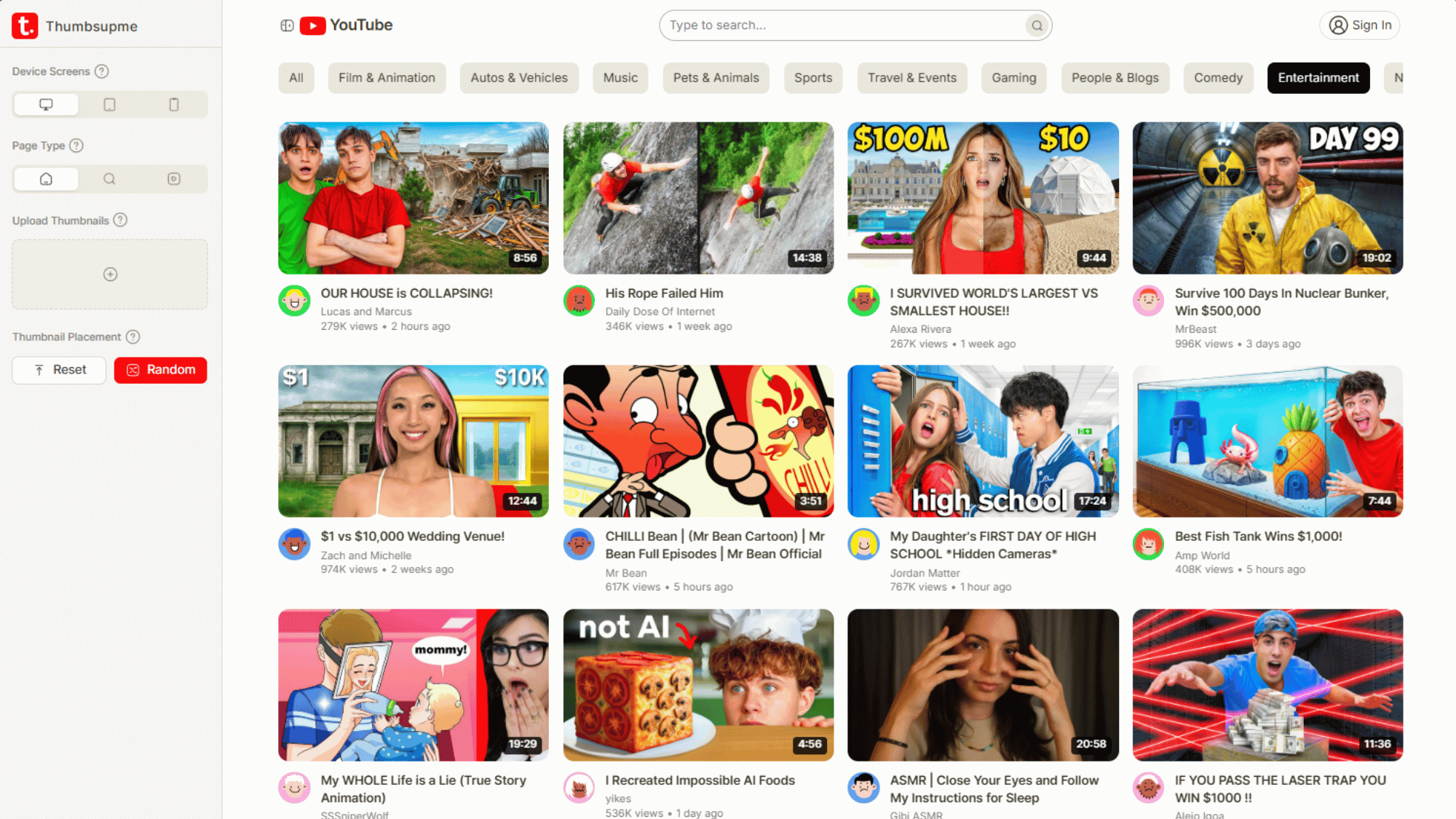
Want to take it a step further? Once you've downloaded a thumbnail and studied what makes it work, use the YouTube thumbnail preview tool to see how your own thumbnail looks across different devices and browse contexts before you publish.
Can You Download Thumbnails From Any YouTube Video?
Pretty much, yes with a couple of things worth knowing.
Public videos:
Any publicly accessible YouTube video has a thumbnail you can download. The image is served from YouTube's CDN and isn't locked behind authentication.
Private and unlisted videos:
If a video is set to private, you won't be able to access it at all (you'd need to be signed in with access). Unlisted videos those with a link but not publicly searchable can technically be accessed if you have the URL, including their thumbnails.
Auto-generated vs. Custom:
YouTube auto-generates three thumbnail frames. Creators can then replace them with a custom image. Both are downloadable, but auto-generated ones tend to be blurry mid-sentence face grabs.
Resolution availability:
Not every video has a maxresdefault image. Older videos might only have lower-resolution versions available. The downloader will show you what's actually there.
What About Copyright? Can You Use Downloaded Thumbnails?
This is the question most people don't ask but absolutely should.
Thumbnails are creative works. In most cases, they're owned by the creator not by YouTube. Downloading a thumbnail for personal reference or private research is generally fine. Using it publicly is a different matter.
Saving thumbnails to study composition, run competitor analysis, or build a private swipe file is standard practice.
Using a thumbnail for analysis often falls under fair use/dealing, but context matters. It's not a blanket pass.
Using someone else's thumbnail in your own products or marketing without permission is shaky ground. Don't do it.
Being inspired to create your own original version is fine research just don't lift the actual image.
When in doubt, look at YouTube's Terms of Service and Thumbnails policy directly.
How Thumbnails Actually Affect a Video's Performance
It's easy to treat thumbnails as an afterthought the last thing you throw together before hitting publish. But the numbers suggest that's a costly mistake.
According to YouTube's own Creator Academy, 90% of the best-performing videos on YouTube use custom thumbnails. That's not a coincidence. The thumbnail is your video's cover, headline, and pitch all at once.
Think about how you browse YouTube. You're scrolling through a feed, and thumbnails are doing most of the work. A great one earns a click in under a second. A bad one gets skipped even if the video is genuinely excellent.
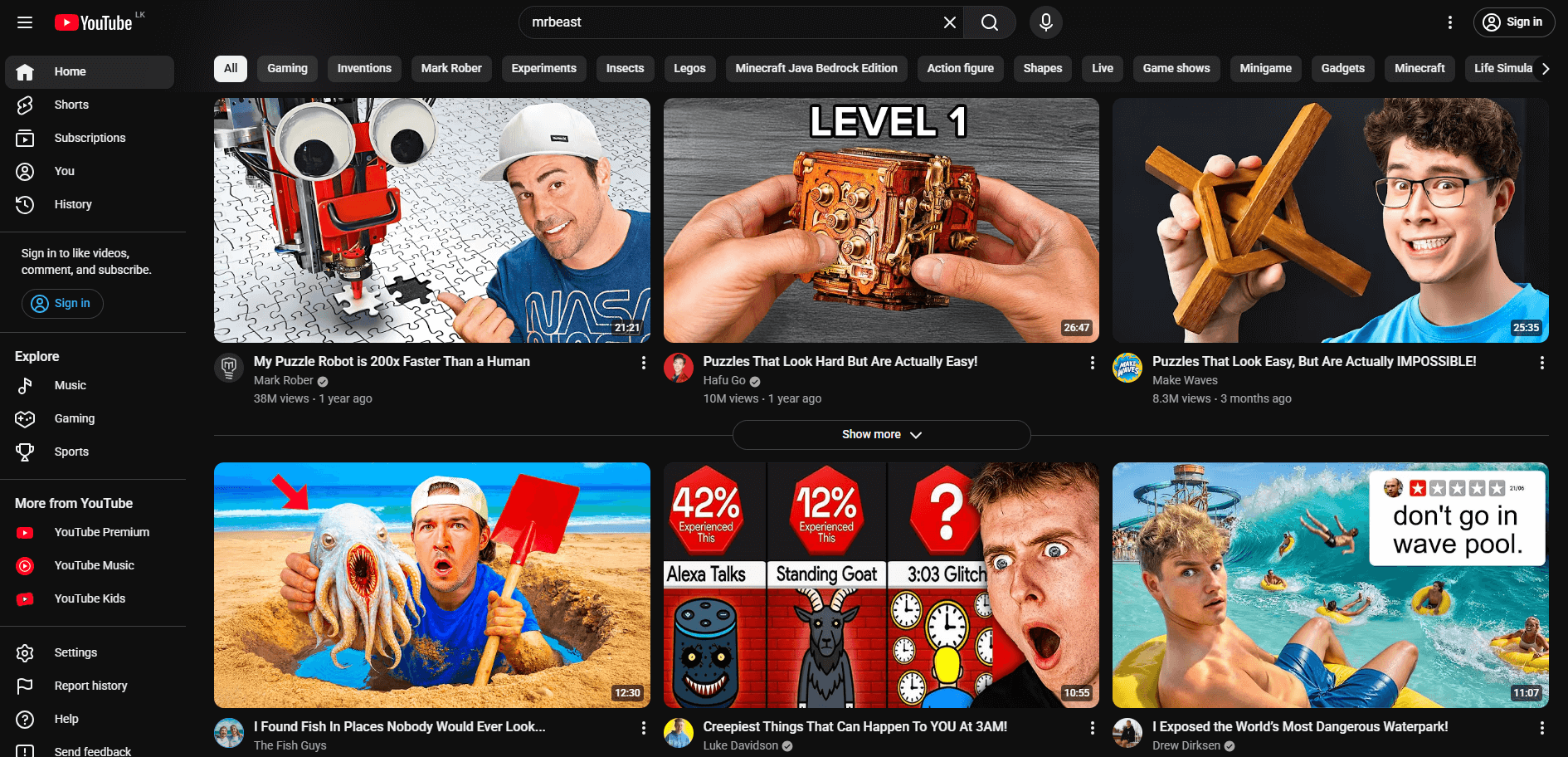
This is exactly why studying competitor thumbnails is so valuable. Use the YouTube video stats tool to check view counts alongside your thumbnail research, and you'll start to see which designs are actually driving performance.
Pair Your Thumbnail Research With the Right Tools
Downloading a thumbnail is just the start. If you're serious about improving your own thumbnails and your channel overall, here's how the tools connect:
Once you've studied what's working in your niche, you'll want to design your own thumbnail and check how it actually looks before you publish. The YouTube thumbnail preview tool lets you see exactly how your thumbnail renders in search results, on the homepage, and on mobile, so you're not guessing.
If you want to add that popular "text behind subject" effect you've seen on high-performing thumbnails, the text behind image tool handles that without any design software needed.
And when you're ready to optimise everything around the video itself not just the thumbnail the YouTube title generator helps you write titles that work alongside your thumbnail to maximise clicks. The title and thumbnail work as a pair. Nail both.
Frequently Asked Questions
More Free YouTube Creator Tools
YouTube Channel Stats
Check subscriber count, total views, and upload frequency for any channel, so you know whose thumbnails are actually worth studying.
Try ToolChannel Banner Downloader
Download any channel's banner in full resolution, useful for brand research and understanding how top creators present their visual identity.
Try ToolChannel Logo Downloader
Save any YouTube channel's profile picture in full resolution, handy for brand research alongside thumbnail and banner analysis.
Try ToolYouTube Hashtag Generator
Generate relevant hashtags to expand your video's reach in search results, a quick win to pair with a polished thumbnail.
Try ToolTranscript Generator
Extract the full transcript from any YouTube video, great for repurposing competitor content into blog posts, captions, or research notes.
Try ToolYouTube Trends Search
Discover what topics are trending on YouTube right now, so your next thumbnail is built around something people are already searching for.
Try ToolGrow Your Channel with Premium Tools
Unlock AI-powered similar thumbnail search, outlier finder, content generator, and more. Everything you need to rank higher, get more clicks, and build an audience that sticks.