Text Behind Image Generator
Add text behind your photos with one click. Create viral styles like MrBeast effortlessly and boost your YouTube CTR now. Try it!
Upload Your Image
Choose an image to add stunning text effects behind your subject
Supports JPG, JPEG, and PNG formats
You've seen it everywhere, a bold word sitting partly in front of someone's shoulder, then disappearing behind their head, then reappearing on the other side. It looks like the text physically exists inside the photo. It's eye-catching, it's modern, and it makes people stop scrolling.
The good news? You don't need Photoshop. You don't even need a design background. The text behind image effect takes about 30 seconds with the right tool, and in this guide, we're going to show you exactly how to pull it off.
What You'll Learn in This Guide
What Is the Text Behind Image Effect?
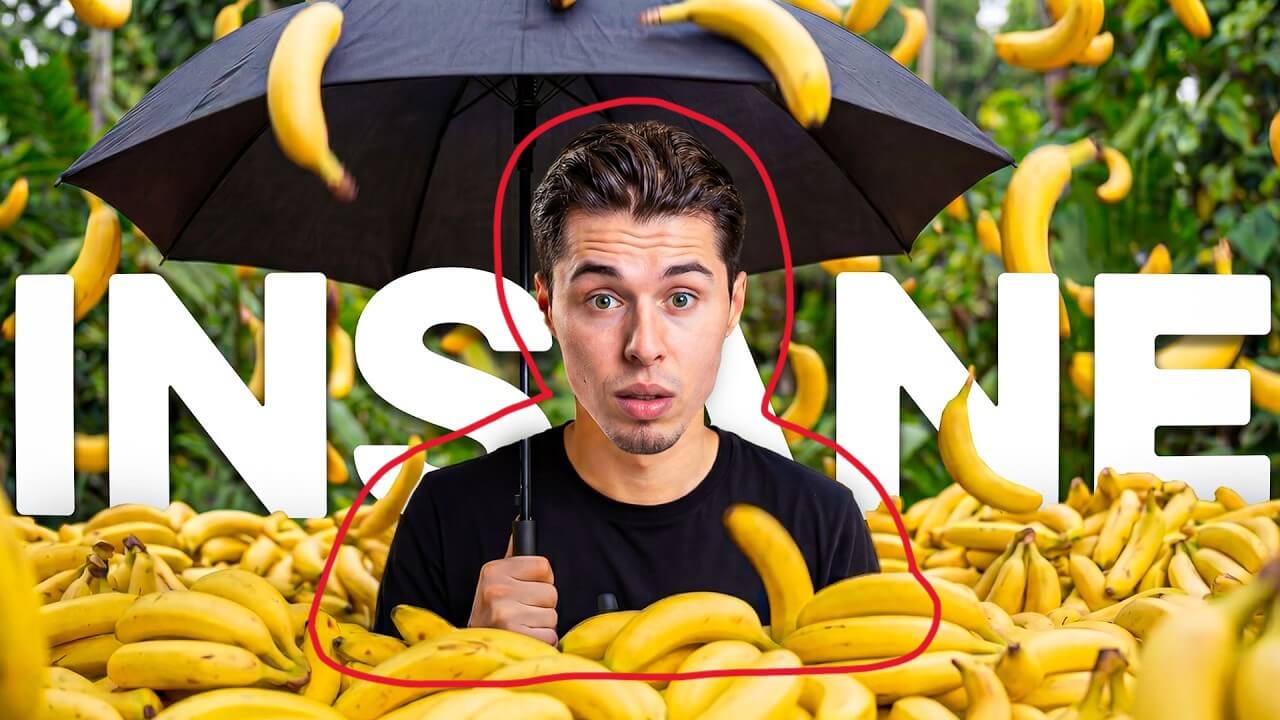
The text behind image effect (sometimes called the text behind person effect or text behind object effect) is a layering technique where your text appears to weave behind the main subject of a photo. Part of the text is visible in front of the background, part of it is hidden behind your subject, and the result looks genuinely three-dimensional.
The effect works because our brains associate depth with objects blocking each other. When your subject appears to be in front of your text, rather than the other way around, the image immediately feels more dynamic and professional.
It's not a new technique. Film posters and magazine covers have used layered typography for decades. What is new is how easy it's become to recreate this look without a design degree or expensive software.
How to Use the ThumbsUpMe Text Behind Image Tool
Here's how to get from a plain photo to a finished design in five simple steps.
Step 1: Upload your image
Head to thumbsupme.app/tools/text-behind-image and upload a photo. Any JPG or PNG works. Photos with a clearly defined subject, a person, a product, an object, give you the cleanest results.
Step 2: Add your text
Type the text you want to appear in the image. Choose your font, size, colour, and weight. Bold, thick fonts work best because they extend visibly on both sides of your subject, which is what creates the 3D illusion.
Step 3: Let the AI detect your subject
The tool automatically identifies the main subject in your photo and creates the layering effect. Your text appears behind them — no manual masking required.
Step 4: Position and resize
Drag your text to where you want it. For the most dramatic depth effect, position the text so it overlaps your subject in the middle, text visible on the left, disappearing behind the subject, reappearing on the right.
Step 5: Download your design
Hit export and you're done. Your image downloads without any watermarks.
Why Everyone Is Using This Effect Right Now
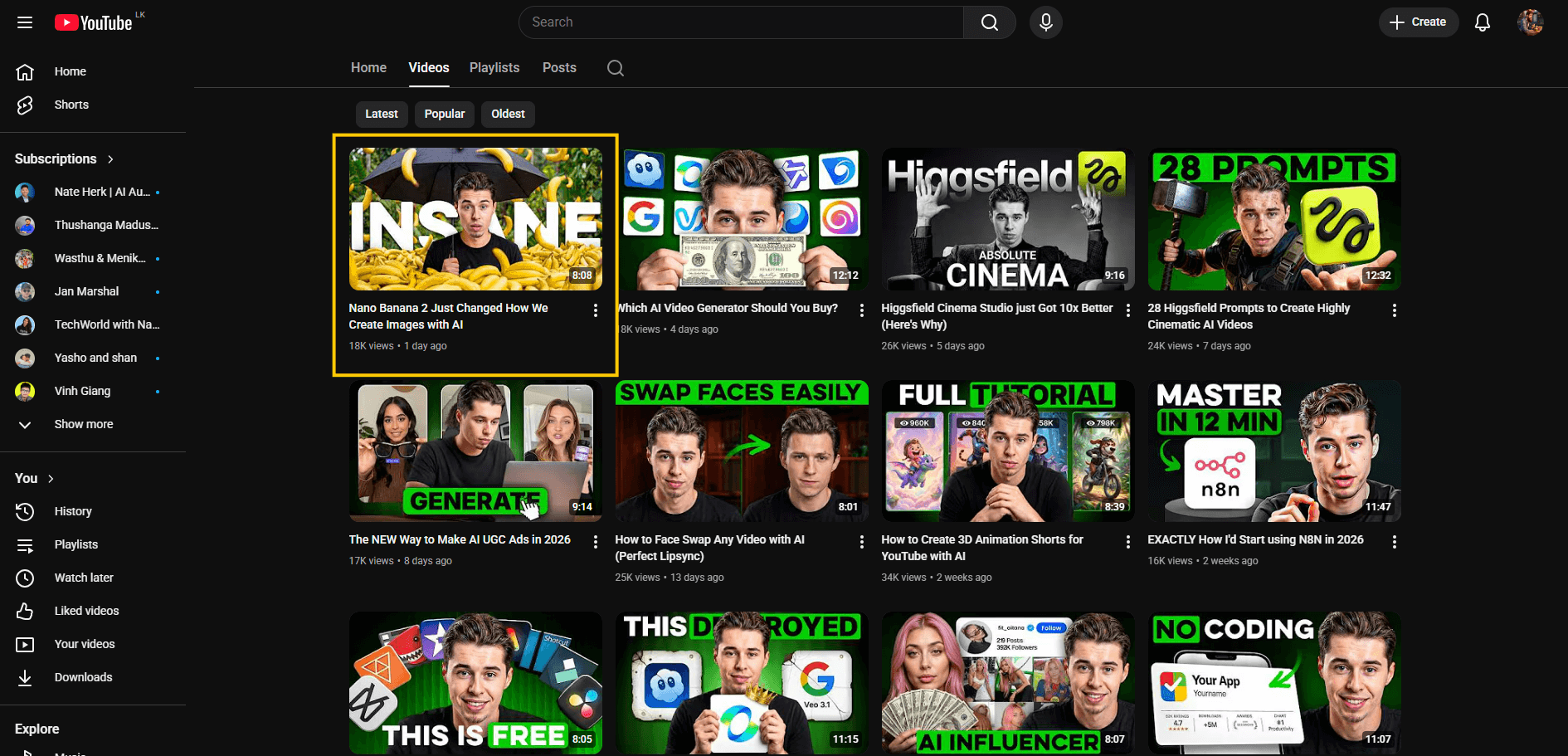
Walk through the top-performing thumbnails on YouTube right now and you'll spot it constantly. Scroll through Instagram's explore page, and there it is again. Even creators actively debate which works better text over or text behind. So why has this specific effect taken off?
It signals effort
Even if it takes 30 seconds, it looks like it took 30 minutes. Viewers equate visual polish with content quality, making them more likely to click before hearing a single word.
It genuinely stands out
Most creators still just slap bold text on top of a photo. When your text weaves through the image, it stands out in a sea of flat designs.
It works on mobile
41.7% of YouTube impressions come from mobile. On a phone screen, the 3D layering of this effect is one of the few design tricks that reads clearly at thumbnail size.
The Two Ways to Create This Effect
There are two approaches people take. One is the manual way, and the other is what most people use now.
The Manual Way (Photoshop or Similar)
Time-intensiveImport your photo
Use the Pen Tool or Subject Selection to manually cut out your subject
Place your text layer between the original photo and the cutout layer
Adjust, fine-tune, export
It works, and results can be pixel-perfect. But it takes 10–20 minutes even for experienced designers, requires paid software, and assumes you already know how to use masking tools.
The AI Tool Way (What Most Creators Use Now)
30 secondsUpload your image to the tool
Add your text and choose your font
AI automatically detects your subject and layers the text
Download your finished design no watermarks
Modern text behind image tools use AI to automatically detect the subject in your photo and handle all the layering for you. No signup. Works on mobile. The whole process takes less than a minute.
Tips for Getting the Best Results
The technique is simple, but a few small choices make a big difference in the final result.
Choose bold, thick fonts
Thin or script fonts almost disappear when part of the text is hidden behind your subject. Display fonts, block letters, and heavy-weight sans-serifs all work really well here.
Use high-contrast colours
Your text needs to pop against both the background and the subject. White or yellow text works across most photos. If your background is busy, add a very subtle text shadow or outline.
Pick the right photo
Images where the subject has clearly defined edges a person with a relatively clean background, a product shot give the AI the most accurate result. Heavily blurred backgrounds or complex hair may need a little more care.
Match your thumbnail dimensions
For YouTube thumbnails, upload at 1920 × 1080 pixels (16:9). For Instagram posts, 1080 × 1080 (square) or 1080 × 1350 (portrait). Always work at your target resolution from the start.
Less text, bigger impact
One to three words is the sweet spot. The more text you add, the smaller each word needs to be to fit, and the depth effect gets less dramatic. Think of your text as a headline, not a sentence.
Text Behind Image vs. Other Popular Effects
It's worth knowing how this effect compares to a couple of similar techniques, because they're often confused.
Text Behind Image
Text goes behind your subject the person or object appears in the foreground, text is partially visible on each side. Best for YouTube thumbnails and social media.
Best for: YouTube thumbnails, social postsKnockout Text
The text itself becomes transparent you see the image through the letters. More editorial, popular on fashion and lifestyle content.
Best for: Editorial, fashion, lifestyleText Overlay
Plain text sitting on top of an image with no depth or layering at all. The most common and the least dynamic.
Best for: Quick social posts, captionsUse Cases: Where This Effect Works Best
YouTube Thumbnails
The most obvious use case. The effect creates the visual hierarchy that makes high-performing thumbnails tick a clear subject in the foreground, supporting text in the middle layer, background behind everything else.
Preview how it looks on YouTubeInstagram Posts & Reels Covers
Instagram is a scroll-stopping competition, and this effect does exactly that. It's particularly powerful for personal branding posts, product reveals, and motivational content.
TikTok Covers
If you're setting a cover image for a TikTok video, a text behind image effect immediately makes your content look more intentional and produced.
Blog Post Featured Images
Your blog post header is often the first thing people see when your content gets shared on social media. A layered typographic treatment makes those shares stand out.
Marketing Materials
Social ads, event announcements, product launches any content where you need to grab attention fast. The 3D depth effect is eye-catching even in small ad units.
What Makes a Thumbnail Actually Get Clicked?
Creating a good-looking text behind image design is one part of the puzzle. But it helps to understand what actually drives click through rate on YouTube (A/B test) , so you can design with that in mind.
YouTube's own thumbnail and title guidance has consistently found that the three biggest thumbnail factors are: a clear, expressive face (when relevant), bold readable text, and a sense of visual tension or curiosity. The text behind image effect contributes to all three, it draws the eye, makes your text feel more integrated with the image, and adds a layer of visual intrigue.
Frequently Asked Questions
More Free YouTube Creator Tools
YouTube Title Generator
Your thumbnail and title work together to drive clicks. Generate high-performing title ideas that match the energy of your thumbnail design.
Try ToolThumbnail Downloader
Download thumbnails from any YouTube video at full resolution. Great for studying what top creators in your niche are doing.
Try ToolYouTube Video Stats
Analyse any YouTube video's performance metrics and study how top-performing creators in your niche and their thumbnail design.
Try ToolYouTube Tag Generator
Generate relevant tags to pair with your polished thumbnail. Better tags mean more impressions more chances for your thumbnail to do its job.
Try ToolYouTube Trends Search
Know what topics are trending before you design your thumbnail. Build visuals around ideas people are already searching for.
Try ToolYouTube Hashtag Generator
Round out your video's metadata with the right hashtags. Works alongside a strong thumbnail to maximise your video's reach.
Try ToolGrow Your Channel with Premium Tools
Unlock AI-powered similar thumbnail search, outlier finder, content generator, and more. Everything you need to rank higher, get more clicks, and build an audience that sticks.